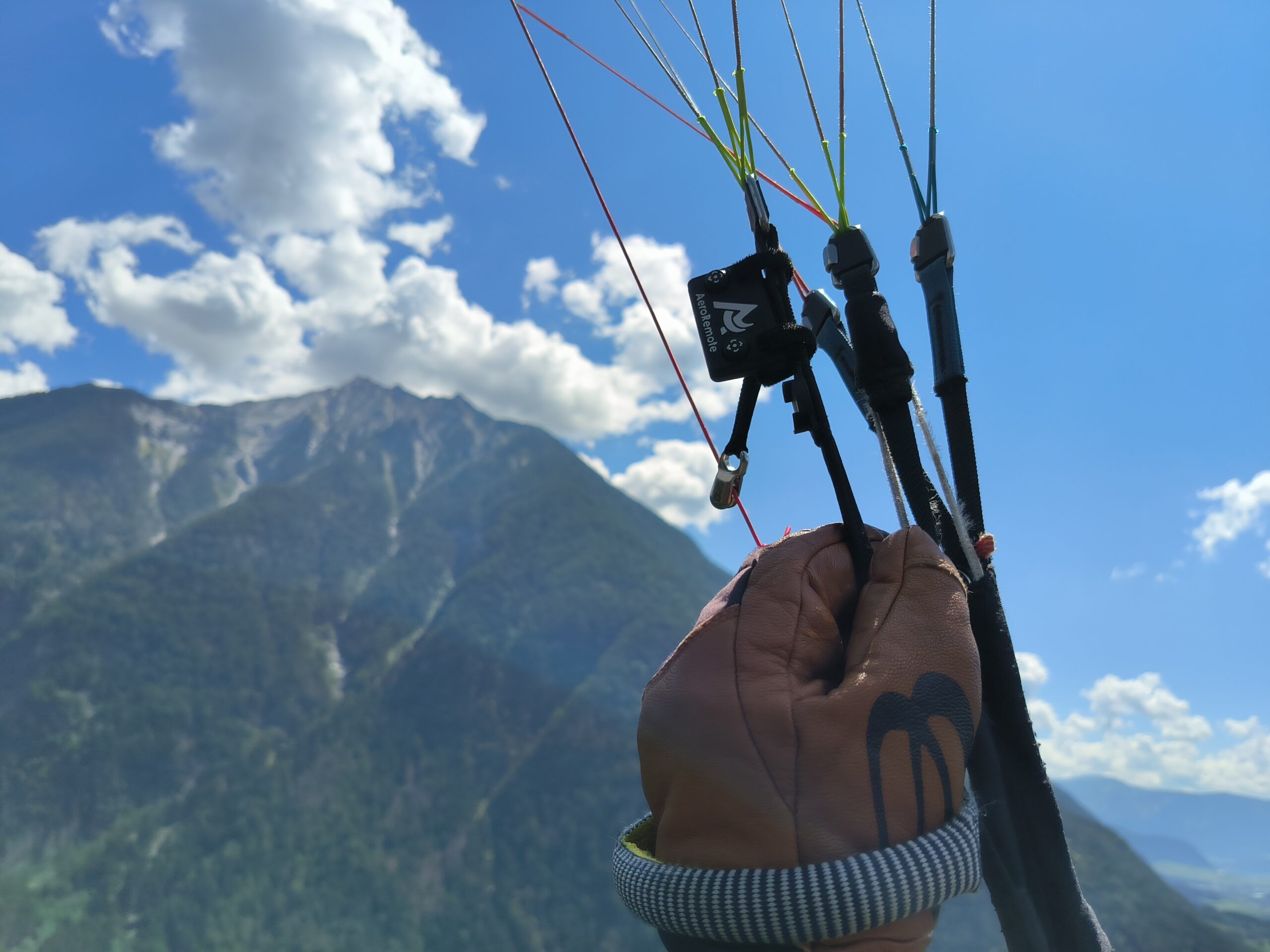
The number of remote-controlled devices that you might want to control whilst flying is constantly increasing. The smartphone app, the 3D camera and Zello, to name but a few. Wouldn’t it be useful if you could operate all these devices using a keypad without having to take your hands off the breaks? That’s exactly what AeroRemote offers.
Raphael Jeger offers a range of products on his website, Aufwind, including the AeroRemote, which he developed in collaboration with Christoph Dunkel. I had bought and tested a previous version of the AeroRemote, the XC Remote, in early 2025. One of my criticisms of the XC Remote was that the casing was rather clunky. I’ll let you in on a little secret right away: this time round, he and his business partner have done a much better job.
Design
The technical specifications are listed on its website as follows:
- Controls: 2 joysticks, each with 5 functions (10 in total)
- Dimensions: 47.4 × 30 × 13.4 mm
- Weight: 16.5 g
- Battery: 90 mAh LiPo (single cell)
- Average operating time: > 2,500 hours
- Standby time: > 10,000 hours
- Charging: USB-C
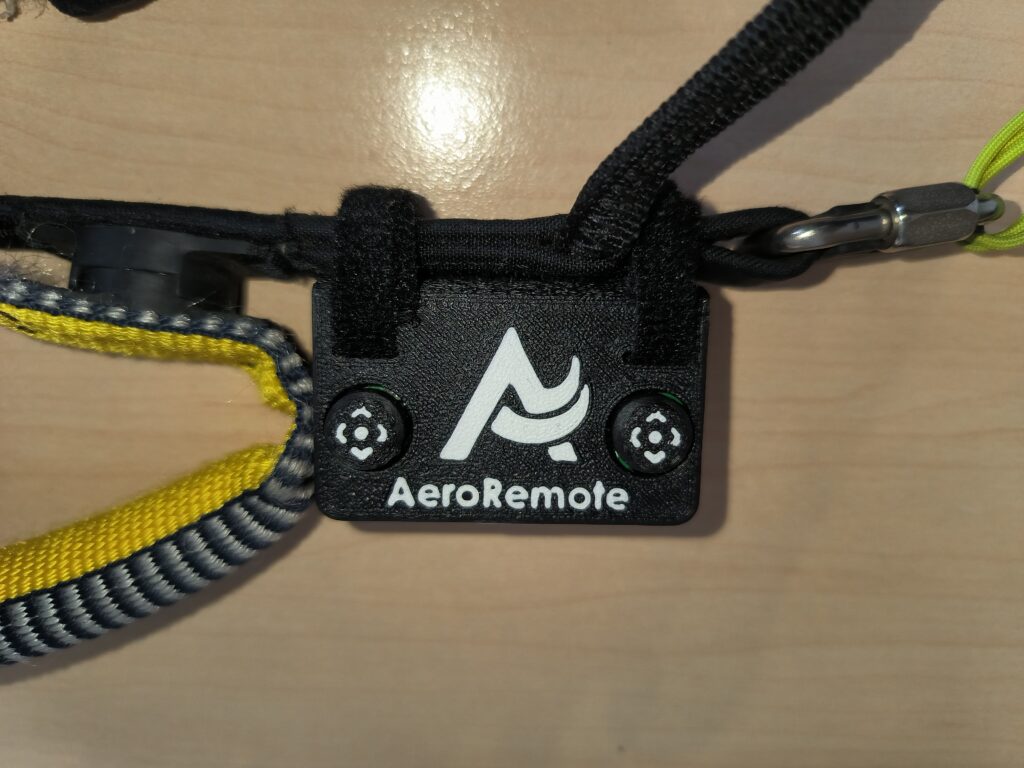
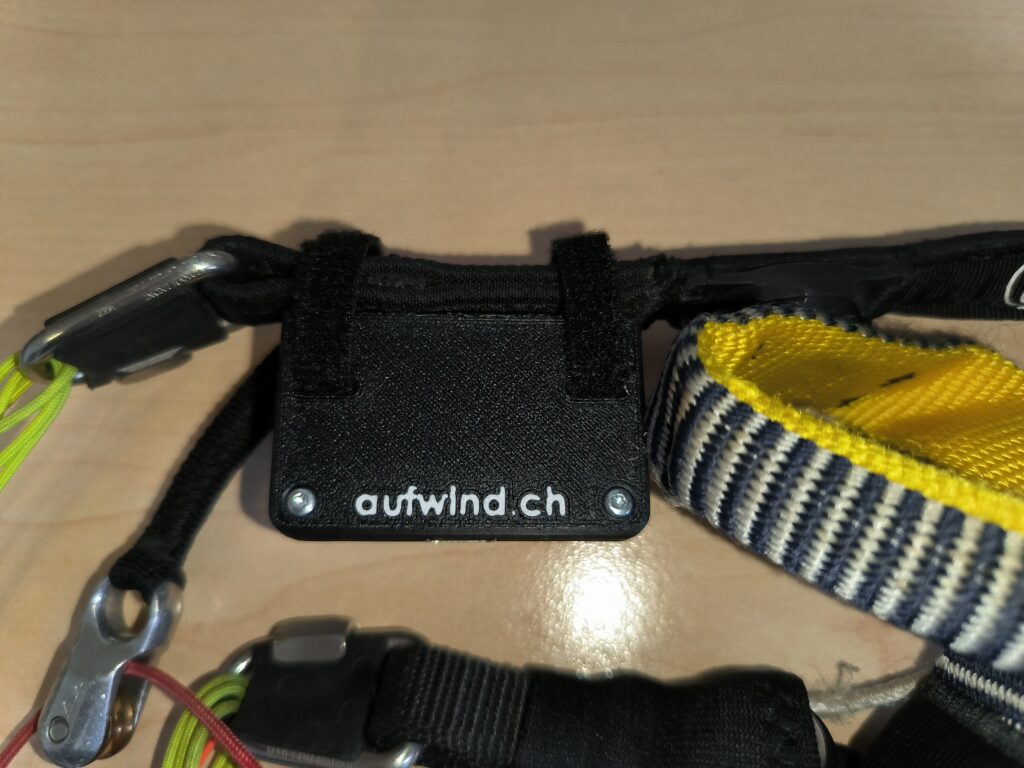
The keyboard is attached to the carrying strap using the Velcro strips supplied. Reinserting the Velcro strips into the slots on the keyboard, as shown in this video, is a bit fiddly. I’ll probably replace the Velcro strips with cable ties, as there’s really no reason to take the keyboard apart.
I consider the position as close as possible to the line locks to be ideal, as this makes it possible to operate the device without letting go of the breaks. The protection rating is not specified, but it cannot be particularly high, as the circuit board is visible through the mounting slots. Care should therefore be taken with dust, dirt and moisture. It can be fitted to either the right-hand or left-hand carrying strap; this simply needs to be taken into account in the configuration. The website states that the mounting bracket is adjustable. I’m not quite sure how exactly this works.
Furnishings
Set-up is carried out via the website aeroremote.aufwind.ch using a web browser capable of accessing the Bluetooth interface. I used the Chrome browser. The AeroRemote is switched on by pushing both joysticks inwards; the LED should now start flashing. Click ‘Connect’ in the browser and you should now be able to pair the keyboard. This works on both a PC and a smartphone. First, you should select which harness the keyboard is attached to.
By clicking on the buttons, you can select various devices and operating modes from the drop-down menu. There are two operating modes for the joystick buttons: ‘Repeat’ for panning and zooming, and ‘Short / Long Press’ to trigger two different functions depending on how long you hold down the buttons. When you press a button, the corresponding button in the configuration flashes briefly.
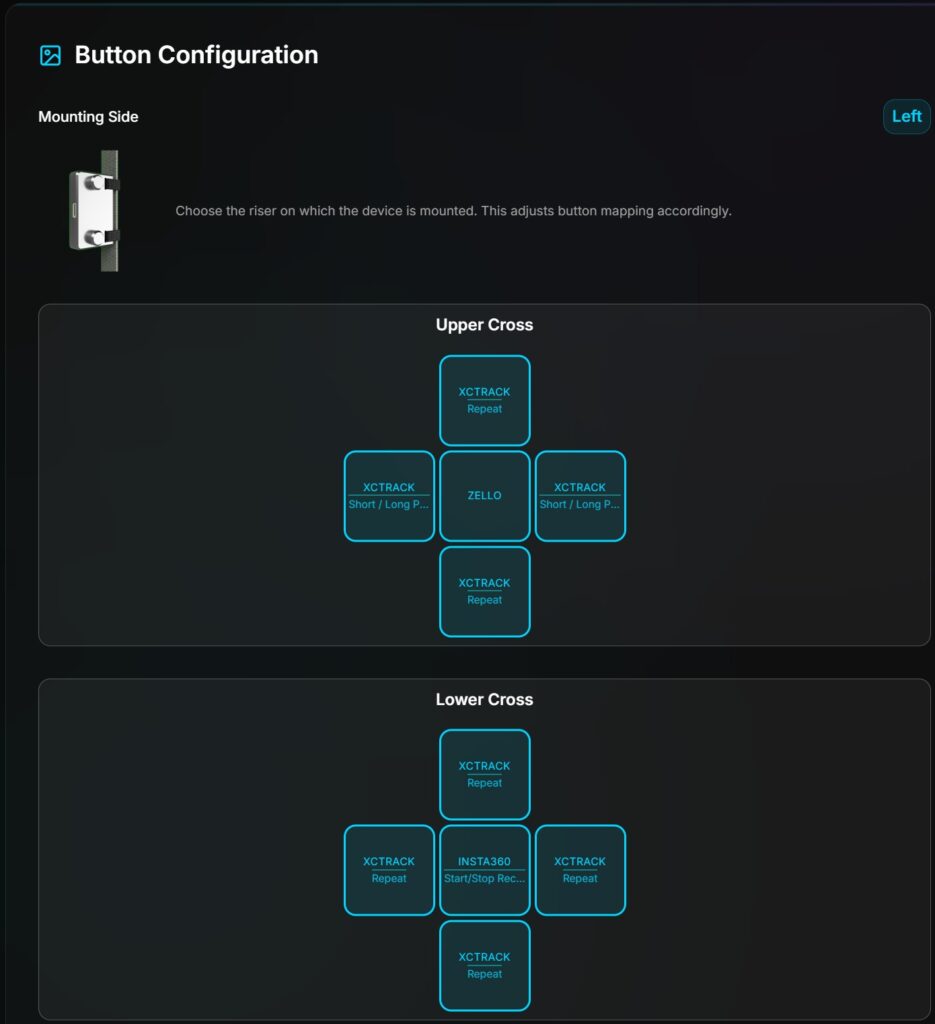
The amazing thing is that you can connect the keyboard to several devices. In my case, these are my smartphone with the XC-Track app, my smartphone with the Zello app, and the Insta360 X3. I set up the Insta360 for testing purposes, but I won’t be using this feature, as I usually just leave the action cam running for the whole flight. Once the keyboard has been configured, the apps and devices need to be set up as follows:
XC Track
You should have the latest version of XC Track installed, as the app has been specially adapted for the AeroRemote. In XC Track, go to Preferences – Key bindings to set the desired action for pressing the button. I use the top joystick to scroll through the layouts (left and right buttons) and to zoom in and out (up and down buttons). I use the bottom joystick to pan across the maps. Sometimes it takes a few seconds for the Bluetooth connection to be established.
Zello
I use the top middle button to send messages on Zello. Unfortunately, I haven’t managed to set up the push-to-talk button yet, but I think I’ll be able to sort it out. Raphael is very helpful and quick to reply.
Insta 360 X3
Using the lower middle button, I have set up the start and stop functions for recording in accordance with the AeroRemote help guide, and it works perfectly.
Other
Only a few other apps and devices are supported, though I haven’t tested them: the FlySkyHy app, the SkyTrackPro app, Anytone two-way radios and various smartphone functions. According to Raphael, more apps and devices are set to be added.
Flying
Even whilst flying, the AeroRemote can be operated flawlessly, even when wearing thick gloves. The feel and feedback through the gloves are excellent. The response time to keyboard inputs is very fast; delays are barely noticeable.
I’ve only tested it in early summer and summer, though. In winter I fly wearing mittens, so it won’t be possible to use the controls then. It might be difficult or impossible to use the controls if you fly wearing mittens or very thick gloves.
Quality
The plastic casing looks very sturdy; it could well survive being stepped on accidentally. The joysticks feel well-made, so I reckon you’ll be able to enjoy using this keyboard for several years, even in the rough and tumble of the aviation world.
Conclusion
The keyboard and its configuration give the impression of being very well thought out. Raphael promises ongoing development. The keyboard isn’t exactly cheap, but the quality and functionality justify the price. Despite the robust casing, you shouldn’t be so careless as to just chuck the carrying straps on the floor, as you might have done in the past. I think the keyboard will be a faithful companion for years to come.
One more thing: unfortunately, I had to pay €27.50 in customs duties. Due to the new EU packaging regulation, Raphel has temporarily suspended sales. On the English forum, he says he has found a solution – hopefully one where the recipient won’t have to pay any customs duties.